How to Connect Your Smart TV to External Speakers or Soundbars
30 June 2026
If you've ever felt like your TV's built-in speakers just aren't cutting it, you're not alone. Most modern smart TVs have excellent picture quality, but their audio can be downright disappointing. That's where external speakers or soundbars come in. They can take your entertainment experience to a whole new level, giving you richer, more immersive sound.
But how exactly do you connect them? Don’t worry—I’ve got you covered. In this guide, we’ll walk through several easy ways to connect your smart TV to external speakers or a soundbar. Whether you're dealing with HDMI, optical cables, Bluetooth, or even old-school RCA connections, you'll find everything you need right here.

Why Upgrade Your TV Audio?
Before we get into the nitty-gritty of connections, let's talk about why upgrading your TV's audio is worth it.- Better Sound Quality – TV speakers are tiny and often lack the depth and clarity that external speakers or soundbars provide.
- Immersive Experience – If you love movies, sports, or gaming, a soundbar or external speakers can make a night-and-day difference.
- Louder and Clearer Audio – Ever struggled to hear dialogue? A good sound system minimizes distortion and enhances dialogue clarity.
- More Bass and Surround Sound – External speakers or soundbars can give you that deep, punchy bass and even simulate a surround sound setup.
Now that we’ve covered why you should upgrade, let’s get into how you do it.
Different Ways to Connect Your Smart TV to External Speakers or Soundbars
There are several ways to connect your smart TV to an external audio system, and the method you choose depends on what ports your devices have. Here are the most common ways: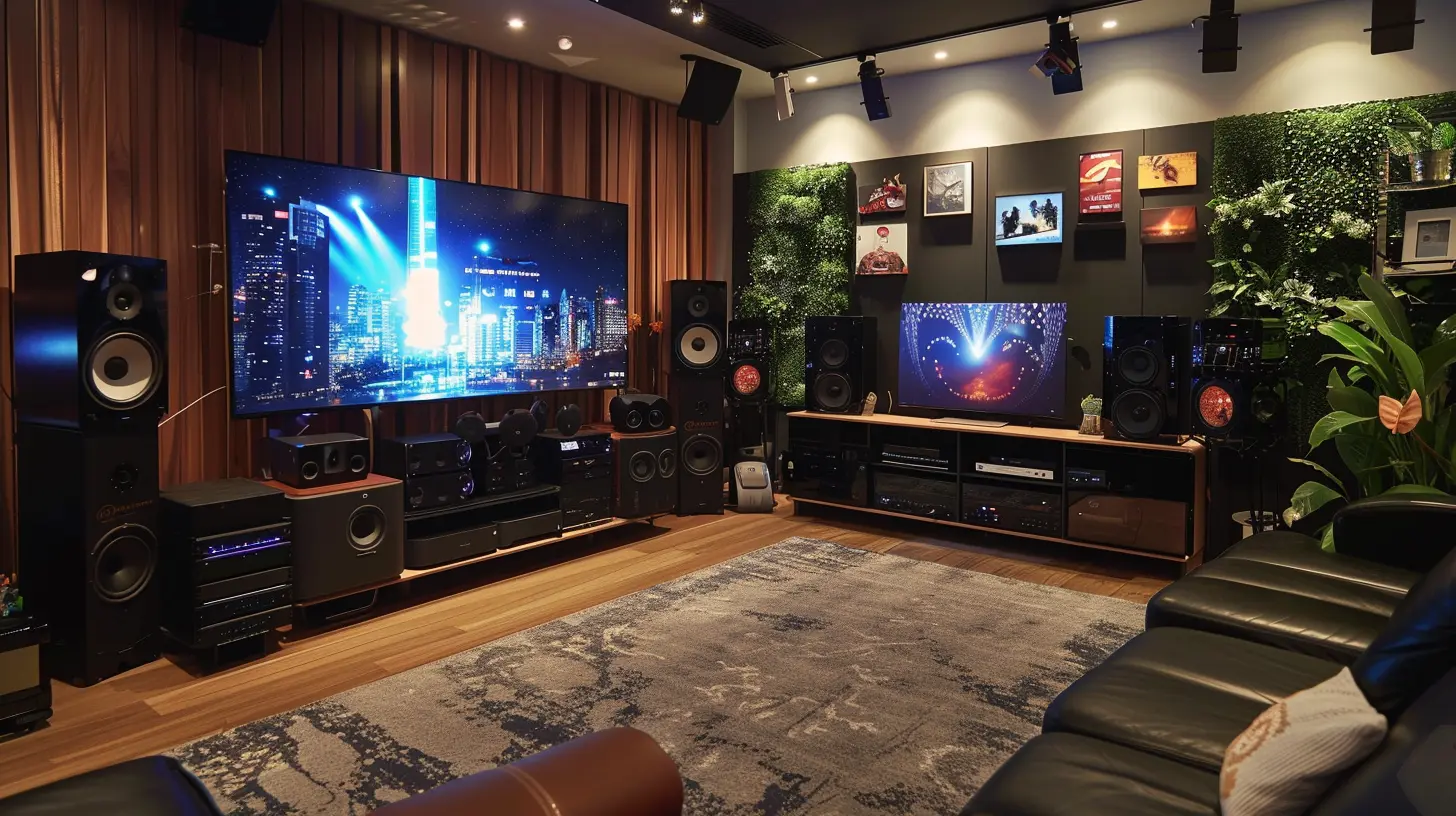
1. Connecting via HDMI ARC (The Best Option)
If you’re looking for the easiest and best way to connect your soundbar or external speakers, HDMI ARC (Audio Return Channel) is the way to go. It allows the TV to send audio signals to your soundbar or AV receiver without needing multiple cables.Steps to Connect via HDMI ARC:
1. Check Your TV and Speaker Ports – Look at the back of your TV and soundbar/external speaker system for an HDMI port labeled "ARC".2. Use a High-Speed HDMI Cable – Connect one end to the TV’s HDMI ARC port and the other end to the soundbar or receiver’s HDMI ARC port.
3. Enable HDMI ARC on Your TV – Go to your TV settings under Audio Output and select HDMI ARC.
4. Activate ARC on the Sound System – Some systems require you to manually switch to HDMI ARC mode in their audio settings.
5. Test the Sound – Play something and check if the sound is coming from the external speakers.
? Pro Tip: If you want enhanced sound quality, look for HDMI eARC (Enhanced Audio Return Channel). It supports higher bandwidth and lossless audio formats like Dolby Atmos.
2. Using an Optical (TOSLINK) Cable
If your TV and sound system don’t support HDMI ARC, using an optical (TOSLINK) cable is the next best thing. It delivers high-quality digital audio but doesn’t carry video signals like HDMI does.Steps to Connect via Optical Cable:
1. Locate the Optical (TOSLINK) Port – This is usually labeled "Digital Audio Out (Optical)" on the back of your TV.2. Connect the Optical Cable – Plug one end into your TV’s optical port and the other end into your soundbar or external speaker system.
3. Change TV Audio Output Settings – Go to your TV’s Audio Settings and set the output to Optical.
4. Adjust Soundbar Settings – If needed, switch the soundbar’s input to Optical mode.
5. Enjoy Your Upgraded Audio – Play a movie or TV show and notice the difference!
? Important Note: Optical cables don’t support advanced audio formats like Dolby Atmos, so if you’re an audiophile, HDMI ARC may be the better option.
3. Connecting via Bluetooth (Wireless Option)
For those who hate cables, Bluetooth is a fantastic wireless way to connect your TV to external audio devices. However, not all smart TVs support Bluetooth audio output, so check your TV settings first.Steps to Connect via Bluetooth:
1. Make Sure Your TV and Speakers Support Bluetooth – Some TVs only support Bluetooth for remotes and keyboards, not audio.2. Turn on Pairing Mode on Your Speakers – Check your speaker’s manual for instructions on how to enable Bluetooth pairing.
3. Pair the Devices – On your TV, go to Settings > Sound > Bluetooth Audio Output and select your speakers.
4. Complete the Connection – Once paired, your TV’s audio should now come through your Bluetooth speakers.
? Keep in Mind: Bluetooth audio can sometimes have a lag between the video and sound, which can be annoying when watching movies or playing games. If that happens, look for a setting called AV Sync or Lip Sync in your TV’s audio settings.
4. Using RCA (Analog) Cables (For Older TVs)
If you’re using an older TV or audio system that lacks HDMI or optical outputs, RCA (red and white) cables are a good alternative. While they don’t support digital audio, they still provide decent sound quality.Steps to Connect via RCA Cables:
1. Check for RCA Ports – Look for red and white audio output jacks on the back of your TV.2. Plug in the RCA Cables – Match the red and white connectors to the corresponding ports on your TV and speakers.
3. Select the Right Input Mode on Your Speakers – Many external speakers have an AUX or RCA input mode—make sure it’s selected.
4. Adjust TV Audio Settings – Go to the Audio Output settings and select Analog Audio Output if necessary.
? Downside: RCA cables only support stereo sound, meaning you won’t get surround sound or advanced audio processing features.
5. Using a 3.5mm AUX Cable
Lastly, if your smart TV has a headphone jack (AUX output), you might be able to connect external speakers using a 3.5mm AUX cable. This option works similarly to RCA cables but in a more compact form.Steps to Connect via AUX Cable:
1. Find the AUX Output on Your TV – Usually labeled "Headphone Jack" or "AUX Out".2. Plug One End into the TV – Insert the AUX cable into the TV’s headphone port.
3. Connect the Other End to Your Speakers – Plug it into the AUX input on your external speakers.
4. Adjust Settings and Volume – Some TVs may automatically mute the built-in speakers when using the headphone jack, but check the settings just in case.
⏳ Small Drawback: AUX cables don’t support surround sound, and there may be some loss of audio quality compared to digital connections.
Final Thoughts
Upgrading your TV’s sound system isn’t just a luxury—it’s a game-changer for your entertainment setup. Whether you go with HDMI ARC for the best quality, optical for a solid digital connection, or Bluetooth for a wireless experience, you now have everything you need to make the right choice.No more flat, lifeless TV audio—just deep, rich, and immersive sound that brings your movies, shows, and games to life. So grab your cables (or go wireless), follow the steps, and enjoy the audio experience your TV was meant to have!
all images in this post were generated using AI tools
Category:
Smart TvsAuthor:

Jerry Graham
Discussion
rate this article
1 comments
James Fields
Great tips for enhancing your Smart TV sound experience!
July 3, 2026 at 11:43 AM
Jerry Graham
I'm glad you found the tips helpful! Improving sound can really elevate your viewing experience.