How to Screen Mirror Your Devices to Your Smart TV
24 February 2026
Ever wished you could share your phone’s screen with everyone in the room? Maybe you want to show some vacation photos on the big screen, or perhaps you're tired of squinting at your tablet during a movie. Well, I’ve got some great news for you: screen mirroring is a thing, and it’s way easier to set up than you'd think. In this guide, I’ll walk you through how to screen mirror your devices to your Smart TV—step by step. Ready? Let’s dive in.
What is Screen Mirroring?
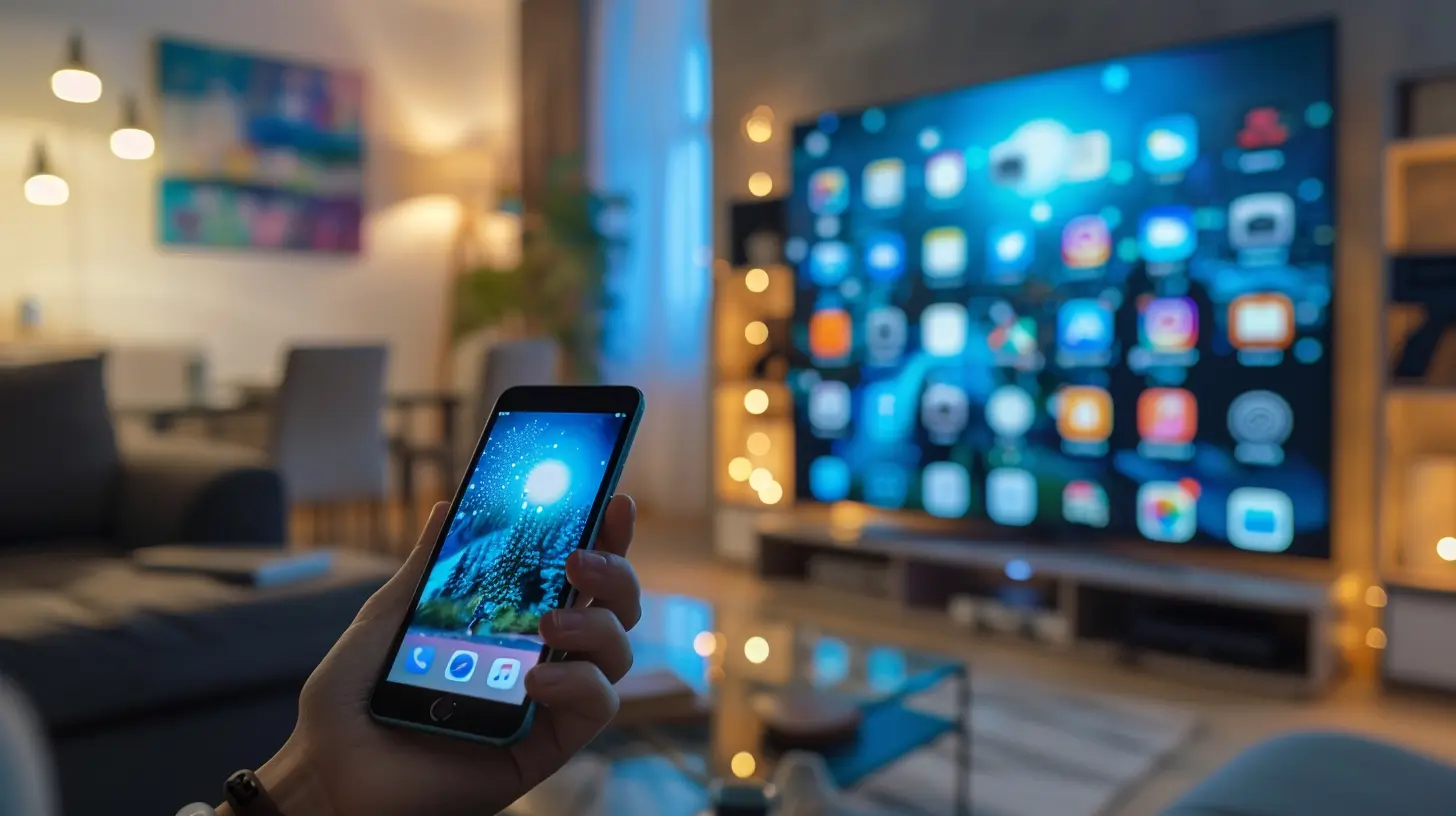
Before we jump into the "how," let’s quickly talk about what screen mirroring actually is. Essentially, screen mirroring allows you to project (or "mirror") what’s on your smartphone, tablet, or computer screen onto a larger display, like your Smart TV. It’s like having your device’s screen cloned, but on a much bigger canvas.Imagine you’re holding a mirror in front of your phone, but instead of your reflection, you get every app, video, or document right there on your TV screen. Pretty cool, right?
Why You’d Want to Mirror Your Screen
So, why would you even want to mirror your screen? Well, there are plenty of reasons. Here are a few:- Watching Movies or Videos: Who wouldn’t want to watch Netflix or YouTube on a bigger screen without dealing with cables?
- Gaming: If you're a mobile gamer, mirroring your screen to a TV can give you that console-like experience.
- Presentations: Got a meeting or presentation? Quickly mirror your laptop or tablet to the TV and impress your audience.
- Sharing Photos: Want to show your family the amazing pictures from your recent trip? Mirroring is a quick way to bring everyone into the experience.
Now that you know why screen mirroring is awesome, let's get into the juicy part: how to actually do it.
How to Screen Mirror on Different Devices
There are several ways to screen mirror, and the best method depends on the type of device you're using. Let’s break it down by platform: Android, iOS, Windows, and Mac.Screen Mirroring from an Android Device
Most Android devices come with built-in screen mirroring features, and they’re super easy to use. Here’s how:Method 1: Using Built-in Cast Feature
1. Check Your TV Compatibility: First things first, make sure your Smart TV supports casting. Most newer Smart TVs do, and they should have options like “Miracast” or “Google Cast.”2. Enable Screen Mirroring on Your TV: Go to your TV’s settings and look for the screen mirroring option. Depending on the brand, it could be called “Screen Mirroring,” “Wireless Display,” or “Cast Screen.” Enable it.
3. Open the Cast Feature on Your Android Device: On your Android phone or tablet, swipe down from the top to open the quick settings menu. Look for the “Cast” or “Screen Mirroring” button (it might also be labeled as “Smart View” on some Samsung devices).
4. Select Your TV: After tapping on the cast option, your phone will search for available devices. When your TV appears in the list, tap on it.
5. Enjoy the Mirror: Your phone’s screen should now appear on your Smart TV. Anything you do on your phone will be mirrored on the big screen.
Method 2: Using Google Chromecast
If your TV doesn’t support casting natively, don’t worry! You can use a Google Chromecast dongle.1. Plug Chromecast into Your TV: Connect the Chromecast to an available HDMI port.
2. Set Up Chromecast: Follow the setup instructions in the Google Home app (available on the Play Store).
3. Open Google Home App: Once everything is set up, open the Google Home app on your Android device.
4. Cast Your Screen: Within the app, tap on your Chromecast, then tap “Cast My Screen” and follow the prompts. Boom! Instant screen mirroring.
Screen Mirroring from an iPhone or iPad (iOS)
Apple users, don’t worry—I didn’t forget about you! Screen mirroring is also easy on iOS devices, but the method is a bit different.Method 1: Using AirPlay
1. Ensure Your TV Supports AirPlay: Some Smart TVs, especially newer models from brands like Samsung, LG, and Sony, come with built-in Apple AirPlay support.2. Swipe Down for Control Center: On your iPhone or iPad, swipe down from the top-right corner to open the Control Center.
3. Tap on Screen Mirroring: You’ll see a “Screen Mirroring” button. Tap it.
4. Select Your TV: Your device will search for AirPlay-compatible devices. Once your TV shows up, tap on it to connect.
5. Boom, You're Mirroring: Your iPhone or iPad should now be mirrored on your Smart TV.
Method 2: Using Apple TV
If your TV isn’t AirPlay-compatible, you can use an Apple TV instead.1. Connect Apple TV to Your TV: Plug the Apple TV into one of your TV’s HDMI ports.
2. Set Up Apple TV: Follow the setup instructions, and make sure both your Apple TV and iPhone/iPad are connected to the same Wi-Fi network.
3. Use AirPlay: As with the previous method, swipe down to access the Control Center, tap the “Screen Mirroring” button, and select your Apple TV.
Screen Mirroring from a Windows PC or Laptop
If you’re on a Windows PC or laptop, screen mirroring can be done easily using various methods. Here’s how:Method 1: Using Miracast
1. Check for Miracast Support: First, ensure your Smart TV supports Miracast. If it does, go to your TV’s settings and enable it.2. Open the Action Center on Windows: On your Windows PC, click on the notification icon in the bottom-right corner to open the Action Center.
3. Select “Project”: Click on the “Project” button.
4. Click on “Connect to a Wireless Display”: Your PC will search for available devices. Select your TV when it appears.
5. Start Mirroring: Your PC’s screen should now be mirrored on your TV.
Method 2: Using an HDMI Cable
If your TV doesn’t support wireless mirroring or you just want a more stable connection, an HDMI cable is a foolproof option.1. Plug in the HDMI Cable: Connect one end of the HDMI cable to your TV and the other end to your PC or laptop.
2. Select the HDMI Input on Your TV: Use your TV remote to switch to the correct HDMI input.
3. Duplicate Your Display: On your PC, right-click on the desktop, go to “Display Settings,” and select “Duplicate” under the “Multiple Displays” section.
Screen Mirroring from a Mac
Finally, if you’re a Mac user, here’s how you can mirror your screen.Method 1: Using AirPlay
1. Ensure Your TV Supports AirPlay: Just like with iOS devices, you can mirror your Mac screen using AirPlay if your Smart TV supports it.2. Click on the AirPlay Icon: In the top-right corner of your Mac’s menu bar, click on the AirPlay icon (it looks like a rectangle with an arrow at the bottom).
3. Select Your TV: Choose your Smart TV from the list of available devices.
4. Mirror Your Screen: Your Mac’s screen should now appear on your TV.
Method 2: Using an HDMI Cable
1. Connect an HDMI Cable: Just like with a Windows PC, you can connect your Mac to your TV using an HDMI cable.2. Select HDMI Input: Switch to the correct HDMI input on your TV.
3. Adjust Display Settings: On your Mac, go to System Preferences > Displays and ensure the display is mirrored or extended, depending on your preference.
Troubleshooting Tips
Screen mirroring is generally straightforward, but if you run into issues, here are a few troubleshooting tips:- Check Wi-Fi: Make sure both your device and Smart TV are on the same Wi-Fi network.
- Restart Devices: Sometimes, a simple restart of both your device and the TV can fix connectivity issues.
- Update Software: Ensure your devices are running the latest software versions.
- Check Compatibility: Make sure your Smart TV and device are compatible with the screen mirroring method you're using.
Final Thoughts
Screen mirroring is a fantastic way to enhance your media experience, whether you’re watching videos, presenting slides, or playing games. With so many ways to mirror your screen, you’re bound to find a method that works for you. Have fun sharing your content on the big screen!all images in this post were generated using AI tools
Category:
Smart TvsAuthor:

Jerry Graham
Discussion
rate this article
2 comments
Lucas Carey
Unlock the full potential of your devices by mastering screen mirroring! This guide empowers you to seamlessly connect and share content on your smart TV, transforming your viewing experience. Dive in, embrace the technology, and elevate your entertainment—because how you connect is how you enjoy! Let the mirroring begin!
March 3, 2026 at 4:43 AM
Jerry Graham
Thank you for the enthusiasm! Mastering screen mirroring truly enhances your viewing experience. Let's get started!
Christa Pope
This article provides clear and concise steps for screen mirroring devices to a smart TV. It effectively outlines the necessary tools and settings, making the process easy to follow. A great resource for anyone looking to enhance their home entertainment experience!
February 27, 2026 at 5:32 AM
Jerry Graham
Thank you for your positive feedback! I'm glad you found the article helpful for enhancing your home entertainment experience.