Cloud Gaming on Smart TVs: What You Need to Get Started
22 February 2026
Gaming has always been a thrilling experience, but cloud gaming takes it to a whole new level—especially when you can enjoy it straight from your Smart TV. No need for expensive gaming rigs or the latest consoles; all you need is a solid internet connection and a compatible TV. Sounds too good to be true? Well, it's not! In this guide, we'll walk you through everything you need to kickstart cloud gaming on your Smart TV. 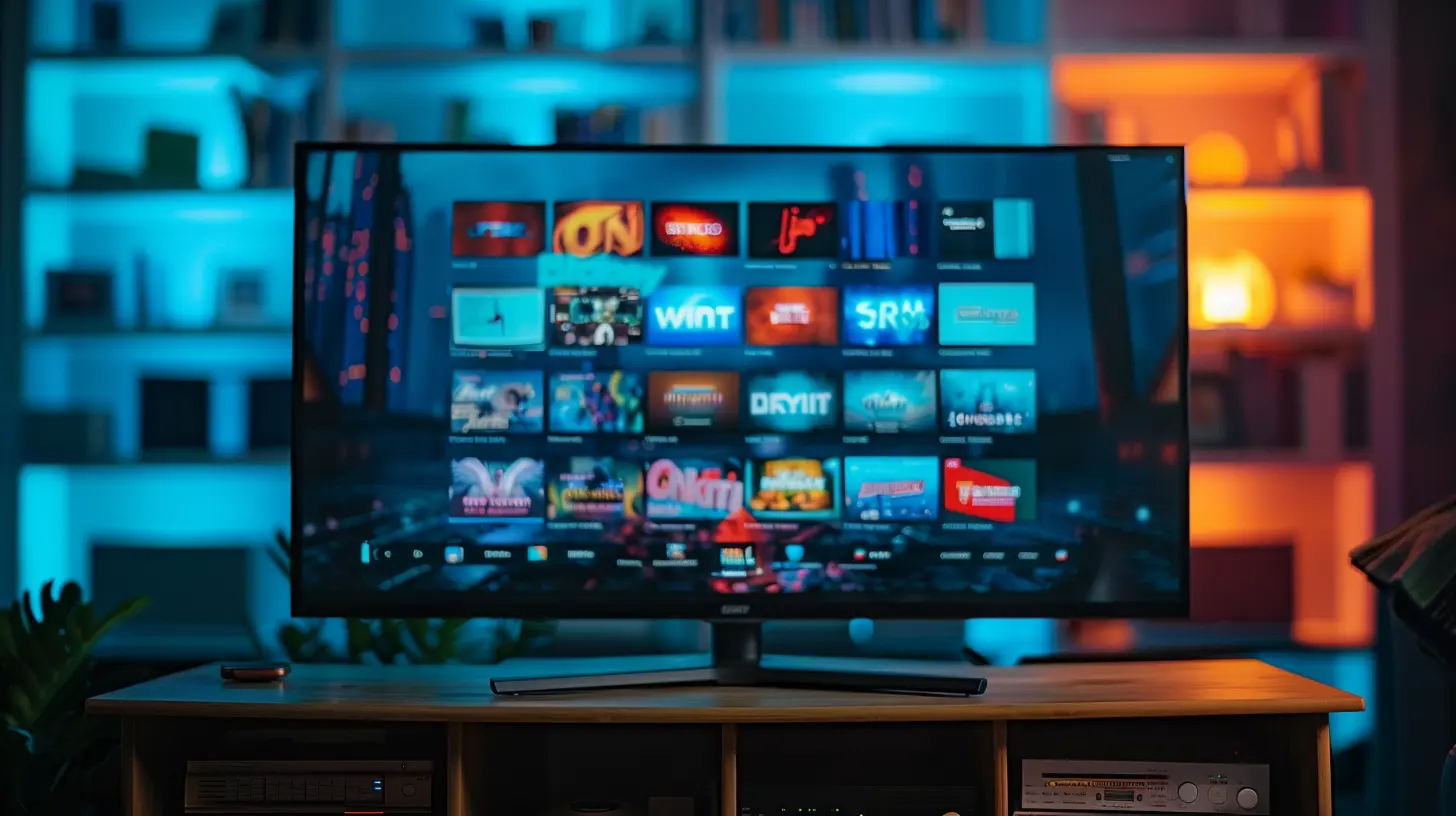
What is Cloud Gaming?
Before we dive into setup details, let's break it down. Cloud gaming allows you to stream video games over the internet, eliminating the need for powerful hardware. Instead of running the games on a console or PC, the heavy lifting is handled by remote data centers. Your Smart TV simply acts as a screen, while the actual processing happens in the cloud.Think of it like Netflix, but for video games. Rather than downloading or installing anything, you stream the game and jump straight into action. This means you can play AAA games without needing to shell out cash for expensive hardware upgrades. 
What Do You Need for Cloud Gaming on a Smart TV?
Setting up cloud gaming on your Smart TV is fairly simple, but a few key requirements need to be met to ensure a smooth experience.1. A Compatible Smart TV
Not all Smart TVs are built for cloud gaming. Some older models might struggle, while newer ones come with built-in support for gaming services. If your TV runs on Android TV, Tizen (Samsung), webOS (LG), or Fire TV, chances are you can get started with cloud gaming right away.💡 Pro Tip: If your TV isn’t compatible, you can always use a streaming device like a Chromecast, Nvidia Shield, or Fire Stick.
2. A High-Speed Internet Connection
Since cloud gaming relies entirely on streaming, a fast and stable internet connection is non-negotiable. Here’s a rough breakdown of the recommended speeds:- Minimum: 10 Mbps (Basic 720p gaming)
- Recommended: 25 Mbps (Smooth 1080p gaming)
- Ideal: 50+ Mbps (4K HDR gaming with minimal lag)
Wired connections (Ethernet) are always better than Wi-Fi for reducing latency. If Wi-Fi is your only option, ensure you’re using a 5GHz band for lower interference and better stability.
3. Cloud Gaming Subscription
There are several cloud gaming services available, and each offers a different library of games. Some of the most popular include:- Xbox Cloud Gaming (Game Pass Ultimate) – Offers access to hundreds of Xbox games
- Nvidia GeForce Now – Play your existing PC game library on the cloud
- PlayStation Plus Premium – Stream PlayStation classics and modern hits
- Amazon Luna – Subscription-based gaming with different channels
- Google Stadia (RIP 😢) – Shut down, but it paved the way for cloud gaming development
Most of these services require a subscription, but some allow you to play free games or use existing game libraries.
4. A Bluetooth Controller
While some cloud gaming services offer touch controls for mobile versions, Smart TVs don’t have that luxury. You’ll need a Bluetooth controller that’s compatible with your gaming service. Here are some great options:- Xbox Wireless Controller
- PlayStation DualSense or DualShock 4
- Amazon Luna Controller
- Nvidia Shield Controller
- Any third-party Bluetooth controller with low latency
Some services, like Xbox Cloud Gaming, even support keyboard and mouse, but this depends on TV compatibility.
5. The Right Cloud Gaming App
Most cloud gaming platforms have dedicated apps available for Smart TVs. Simply navigate to the app store on your TV and search for the relevant service. If your TV doesn't support a certain app, you might need to sideload it (Android TV users can install APKs manually).
Setting Up Cloud Gaming on Your Smart TV
Now that you have everything you need, let's get cracking on the setup process.Step 1: Install the Cloud Gaming App
Go to your TV's app store, search for the cloud gaming service of your choice, and install it. If your service isn’t available on the app store, consider using a streaming device like Chromecast or Fire Stick.Step 2: Connect a Controller
Power on your Bluetooth controller and put it in pairing mode.On your TV, navigate to Settings > Bluetooth & Devices > Add New Device and select your controller. Once paired, you’re good to go.
Step 3: Log Into Your Gaming Account
Open the cloud gaming app, sign in with your account credentials, and ensure your subscription is active.Step 4: Test Your Internet Connection
Check speed via built-in tools (some apps have this feature) or visit Fast.com on your TV’s browser for a quick test. Make sure your internet speed meets the requirements for hassle-free gaming.Step 5: Start Playing!
Once everything is set up, browse through the game catalog and launch a game. Enjoy lag-free gaming on your Smart TV like a pro!
Pros and Cons of Cloud Gaming on Smart TVs
While the idea of cloud gaming sounds amazing, there are still some considerations you should be aware of.✅ Pros:
✔ No need for expensive consoles or gaming PCs✔ Instant access to a huge game library
✔ No downloads or storage limitations
✔ Play anywhere, anytime with just a controller
❌ Cons:
✖ Requires a strong and steady internet connection✖ Input lag may affect fast-paced games
✖ Game libraries depend on cloud services
✖ Some TVs may not be fully optimized for cloud gaming
Tips for the Best Cloud Gaming Experience
Want to minimize lag and optimize performance? Here are a few tricks to enhance your cloud gaming experience on a Smart TV:- Use Ethernet over Wi-Fi – A wired connection drastically reduces lag and disconnections.
- Close Background Apps – Apps running in the background can hog bandwidth, leading to lag.
- Use a Gaming Router – Some routers prioritize gaming traffic, reducing latency.
- Lower Video Quality if Needed – If you experience lag, switch to 720p or 1080p for smoother gameplay.
- Sit Closer to Your Router – If using Wi-Fi, minimize the distance between your TV and router.
Is Cloud Gaming Worth It?
Absolutely—if you have a solid internet connection. Cloud gaming is revolutionizing the way we play by making gaming accessible on Smart TVs without the need for expensive consoles. While there are still latency issues and internet dependency, technology is rapidly improving.For casual gamers and those who don’t want to invest in dedicated gaming hardware, cloud gaming on Smart TVs is a game-changer (literally). So, if you have a great internet connection, a compatible TV, and a Bluetooth controller, what are you waiting for? Dive into the world of cloud gaming today!
Final Thoughts
Cloud gaming on Smart TVs is the future, and it’s here to stay. It provides an affordable, hassle-free way for gamers to enjoy their favorite titles without the need for constant hardware upgrades. As internet speeds improve and latency issues are addressed, cloud gaming could very well replace traditional gaming consoles altogether.So, whether you’re a casual gamer looking for quick fun or a hardcore player tired of upgrading hardware, cloud gaming on a Smart TV might be just what you need.
all images in this post were generated using AI tools
Category:
Smart TvsAuthor:

Jerry Graham
Discussion
rate this article
2 comments
Brick Larsen
Great article! Cloud gaming on smart TVs opens up exciting possibilities for gamers. Your tips on required hardware and internet speed are essential for beginners. It's an innovative way to enjoy high-quality gaming without the need for dedicated consoles.
February 27, 2026 at 11:50 AM
Jerry Graham
Thank you for your feedback! I'm glad you found the tips helpful and appreciate your enthusiasm for cloud gaming on smart TVs!
Mary Hines
Great article! Cloud gaming on smart TVs is an exciting development, allowing seamless gameplay without the need for consoles. Just ensure you have a stable internet connection, a compatible TV, and the right gaming subscription to unlock all the possibilities. Happy gaming!
February 24, 2026 at 11:25 AM
Jerry Graham
Thank you! I’m glad you found the article helpful. Enjoy your cloud gaming experience!