How to Use Your Smart TV as a Hub for Home Automation
8 July 2026
Welcome to the smart home revolution—where your TV isn’t just for binge-watching your favorite shows anymore. It’s time to rethink what that sleek screen hanging on your wall can really do. Believe it or not, your smart TV can be the brain of your entire smart home setup. Yep, we’re talking automation, voice control, device syncing, and even security checks—all from your living room couch.
If you're wondering how to get started or why you'd even want to, you're in the right place. In this guide, we’ll break down the hows and whys of turning your smart TV into a full-blown smart home hub. Let’s turn that passive entertainment device into the heart of your home automation system!
Why Your Smart TV Is the Perfect Candidate for a Home Automation Hub
Think about it—your smart TV is already connected to your home Wi-Fi, probably has built-in voice assistants, and stays on or near the center of your living space. So why not let it do more?Central Location = Central Control
Your living room is usually the heart of your home, and chances are, that’s where your smart TV resides. Having your smart TV serve as your automation hub means you don’t need an extra device or centralized controller cluttering up your space. It’s already there, it’s already smart—now you're just unlocking its true potential.Built-In Integration with Voice Assistants
Most modern smart TVs now come with Amazon Alexa, Google Assistant, or even Apple HomeKit compatibility. This means you can control your entire smart home setup using simple voice commands through your TV remote or even the TV itself. Imagine saying, "Turn off the kitchen lights," while watching a movie—and it actually happens.Real-Time Visual Feedback
Unlike standalone smart home hubs that may only beep or light up, your smart TV can provide visual feedback. You can monitor your security camera feeds, check who's at the door, adjust your thermostat settings, and even see what lights are on—all without lifting anything but the remote.
The First Step: Check Your Smart TV’s Compatibility
Before you dive in, it’s important to know what your smart TV is capable of. Not all smart TVs are created equal. Some are more automation-friendly than others.Brands That Play Nice with Smart Home Systems
- Samsung Smart TVs: These come with SmartThings integration, making it easy to connect with multiple smart devices.- LG Smart TVs: Known for their ThinQ AI system, LG TVs support Google Assistant and Alexa natively.
- Sony Android TVs: These run on Android TV OS, which offers deep integration with Google Home and Alexa.
- Vizio Smart TVs: Vizio has also stepped up its game by supporting both Google Assistant and Alexa.
What to Look For
- Operating System: TVs powered by Android TV, Tizen (Samsung), or WebOS (LG) typically offer more automation features.- Voice Assistant Support: Native support for Alexa, Google Assistant, or Siri is a big plus.
- Smart Home App Support: Can your TV install or natively support apps like SmartThings, Google Home, or Amazon Alexa?
Once you’ve confirmed that your TV is suitable, the fun begins!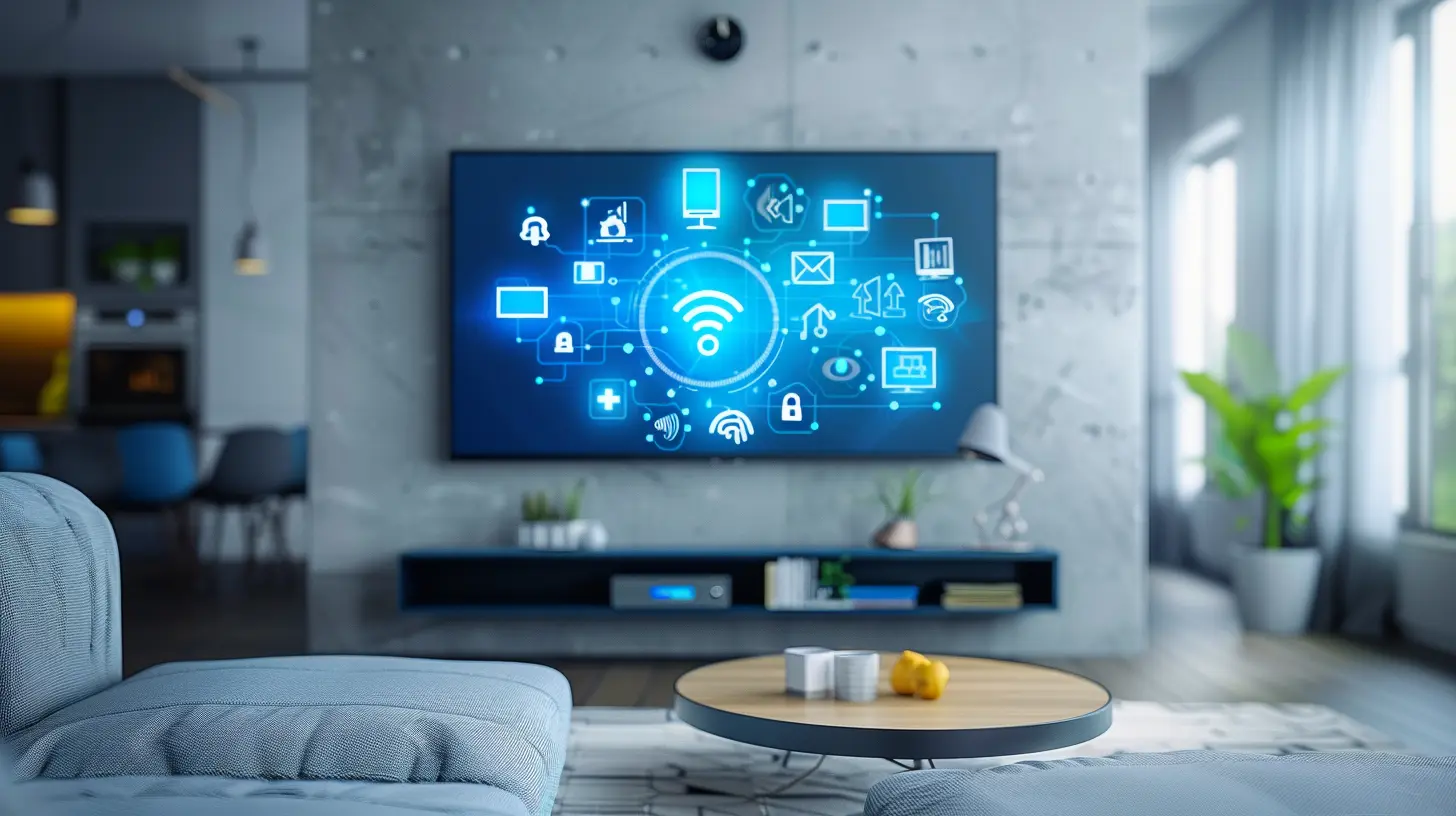
Setting up Your Smart TV as a Home Automation Hub
Ready to give your TV a promotion? Here’s how to set it up as your home automation hub.1. Connect Your TV to Wi-Fi
This seems obvious, but it’s essential. A stable internet connection ensures your TV can communicate seamlessly with your other smart devices. Make sure it’s on the same network as your smart gadgets.2. Sync Your Voice Assistant
Most smart TVs will prompt you to connect a voice assistant during setup. If not:- For Alexa: Download the Alexa app, go to Skills & Games, and enable the skill for your TV brand.
- For Google Assistant: Use the Google Home app to link your TV under “Add Device.”
- For Apple HomeKit: Follow the specific pairing instructions provided by your TV model.
3. Connect Smart Devices Through a Hub App
If your TV supports a smart home hub app like SmartThings or Google Home, download it directly if possible or link it via your mobile device.After connecting the hub app:
- Add smart bulbs, plugs, thermostats, cameras, and more.
- Label rooms and devices for easy control.
- Set up scenes—like “Movie Night” to dim lights and lower thermostats all at once.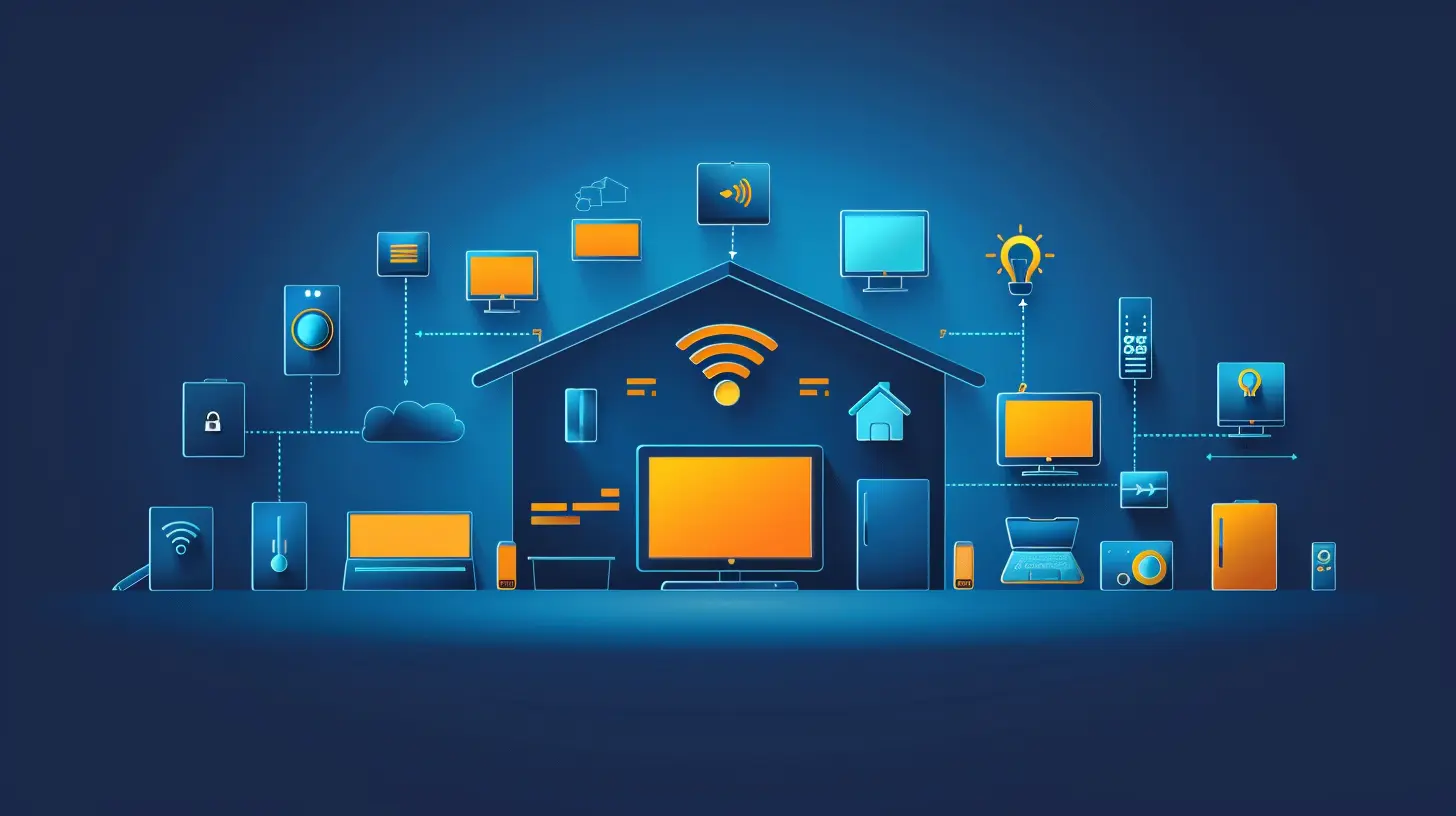
What Can You Control via Your Smart TV?
This is where the magic kicks in. Once set up, your smart TV isn’t just showing you what’s on Netflix—it’s showing you what’s happening in your entire home.1. Smart Lighting
Dim the dining room lights for dinner, turn off the porch light from the couch, or set smart bulbs to change colors based on the TV scene. Yep, all from your screen or voice command.2. Smart Thermostats
Adjust the temperature without pausing your movie. Some TV integrations even suggest temperature changes based on your viewing habits or time of day.3. Security Cameras and Doorbells
See who’s at the door with a picture-in-picture view or full-screen video feed. Some TVs even support two-way audio, letting you talk to visitors without leaving your seat.4. Smart Plugs and Appliances
Keep your coffee warm mid-show or check if you left the iron on. Control or monitor anything plugged into a smart plug right from your TV.5. Home Entertainment Devices
Of course, your TV is already an entertainment powerhouse, but now you can control lights, speakers, and streaming devices to create the perfect viewing environment.Boosting the Experience with Automation Routines
Automation isn’t just about control—it’s about control that happens automatically. Once your TV is the hub, you can set up routines that make your life easier and better.Morning Routine
Imagine this: You turn on your TV in the morning and it simultaneously:- Opens the blinds
- Plays your morning news playlist
- Turns on the coffee machine
- Shows your calendar on screen
Movie Night Scene
Say, “Movie Night,” and:- The lights dim
- The surround sound system powers up
- Thermostat adjusts for comfort
- Streaming app loads your favorite genre
Away Mode
Heading out? Say “Goodbye” or press a button and:- All lights turn off
- Doors lock
- Cameras activate
- Thermostat adjusts to energy-saving mode
Extra Tips to Maximize Efficiency
Want to squeeze every last drop of smart out of your setup? Try these tips:- Use Scenes and Zones: Group devices by rooms or activities.
- Set Schedules: Automate based on time (e.g., lights off at midnight).
- Use Sensors: Motion sensors can trigger TV commands or automation.
- Update Firmware: Keep your TV and smart devices updated for best compatibility.
- Voice Command Combos: Create voice routines like, "Good night Alexa," to control multiple devices at once.
When NOT to Use Your TV as a Hub
Let’s keep it real—this setup isn’t for everyone. If your TV is older, slow, or lacks compatibility, forcing it to be something it’s not could cause more frustration than convenience.Also, if you have a multi-story house or want to control devices in areas far from the TV’s location or Wi-Fi reach, a dedicated smart home hub might still be the better choice. Think of the TV as the accessible starting point, not necessarily the end-all-be-all hub.
Final Thoughts: The Power Is in Your Hands (or Remote)
Turning your smart TV into a smart home hub is more than a tech trick—it’s a lifestyle upgrade. It’s about making your home work better for you, simplifying your routines, and embracing a future where tech and comfort go hand in hand.So next time you’re watching your favorite show, think about what else your TV could be doing. Because with the right setup, it can literally control your entire world—one command or button press at a time.
Automate smarter. Live better. And never underestimate the power of a device you already own.
all images in this post were generated using AI tools
Category:
Smart TvsAuthor:

Jerry Graham
Discussion
rate this article
1 comments
Shania Wolfe
This article does a great job highlighting the potential of smart TVs in home automation. It's exciting to see how these devices can integrate with other technology, making our lives easier and more convenient. Looking forward to trying out these tips myself!
July 9, 2026 at 4:07 AM
Jerry Graham
Thanks for the feedback! I'm glad you found the article helpful. Enjoy experimenting with your smart TV and home automation!