How to Optimize Your Phone for Gaming Without Overheating
30 October 2026
Your phone heats up during gaming because it is doing exactly what you asked: pushing the processor, graphics chip, memory, and display at full tilt while also charging the battery and holding a network connection. Heat is the unavoidable byproduct of that work. The real problem is not that your phone gets warm. The problem is that modern phones are designed to protect themselves when they get too warm, and that protection looks a lot like bad performance: stuttering frame rates, dimmed screens, throttled clocks, and in some cases a warning that shuts the game down.
The goal of optimization, then, is not to make heat disappear. It is to reduce the heat your phone has to deal with, move that heat away efficiently, and stop wasting performance on things that do not improve your gameplay. This guide covers all three, from the physics of why phones throttle to the settings, habits, and accessories that actually make a difference, plus the popular advice that does more harm than good.
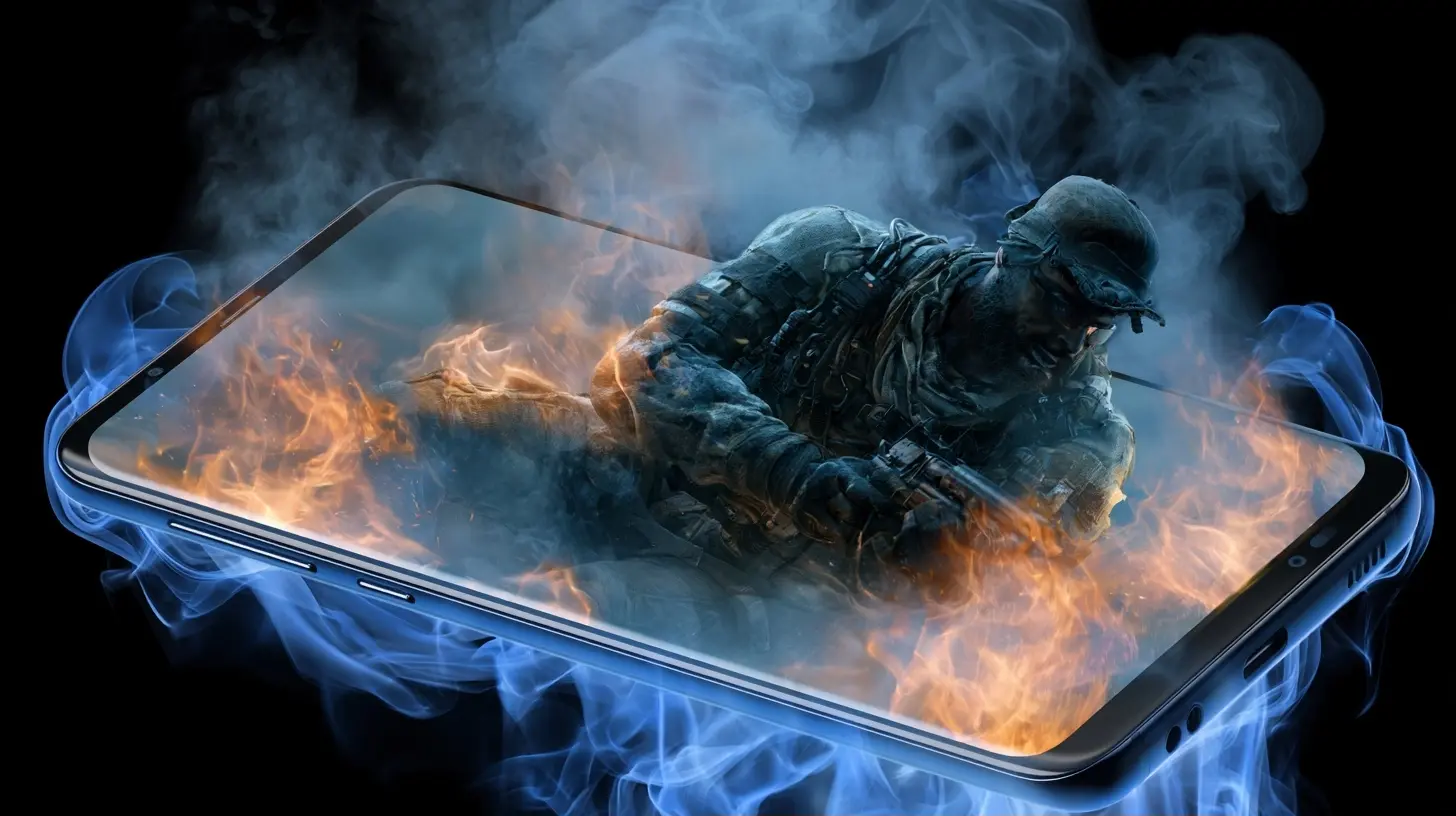
Why Phones Overheat in the First Place
A phone has no fan and almost no internal air volume. It relies on passive cooling: heat spreads through metal and graphite layers, then dissipates into the air through the chassis and screen. That design works fine for messaging and video, which are bursty, low-power workloads. Games are different. A demanding title can keep the CPU and GPU busy for an hour straight, and the sustained power draw overwhelms the phone's ability to shed heat.Two chips matter most. The system on a chip, or SoC, contains the CPU and GPU and is the primary heat source. The battery is the second. Lithium-ion batteries generate heat both when discharging quickly and when charging, which is why gaming while plugged in is the worst-case scenario for thermals. The display, the cellular modem, and the charging circuitry all add their share.
When internal temperature crosses a threshold the manufacturer set, the phone begins thermal throttling. It lowers clock speeds, caps frame rates, dims the screen, and reduces charging speed. This is not a defect. It is the phone keeping itself within safe operating limits, protecting the battery from accelerated wear and the chip from damage. Understanding this changes how you approach optimization: you are not fighting the throttle, you are trying to keep the phone far enough from the threshold that the throttle never needs to kick in.
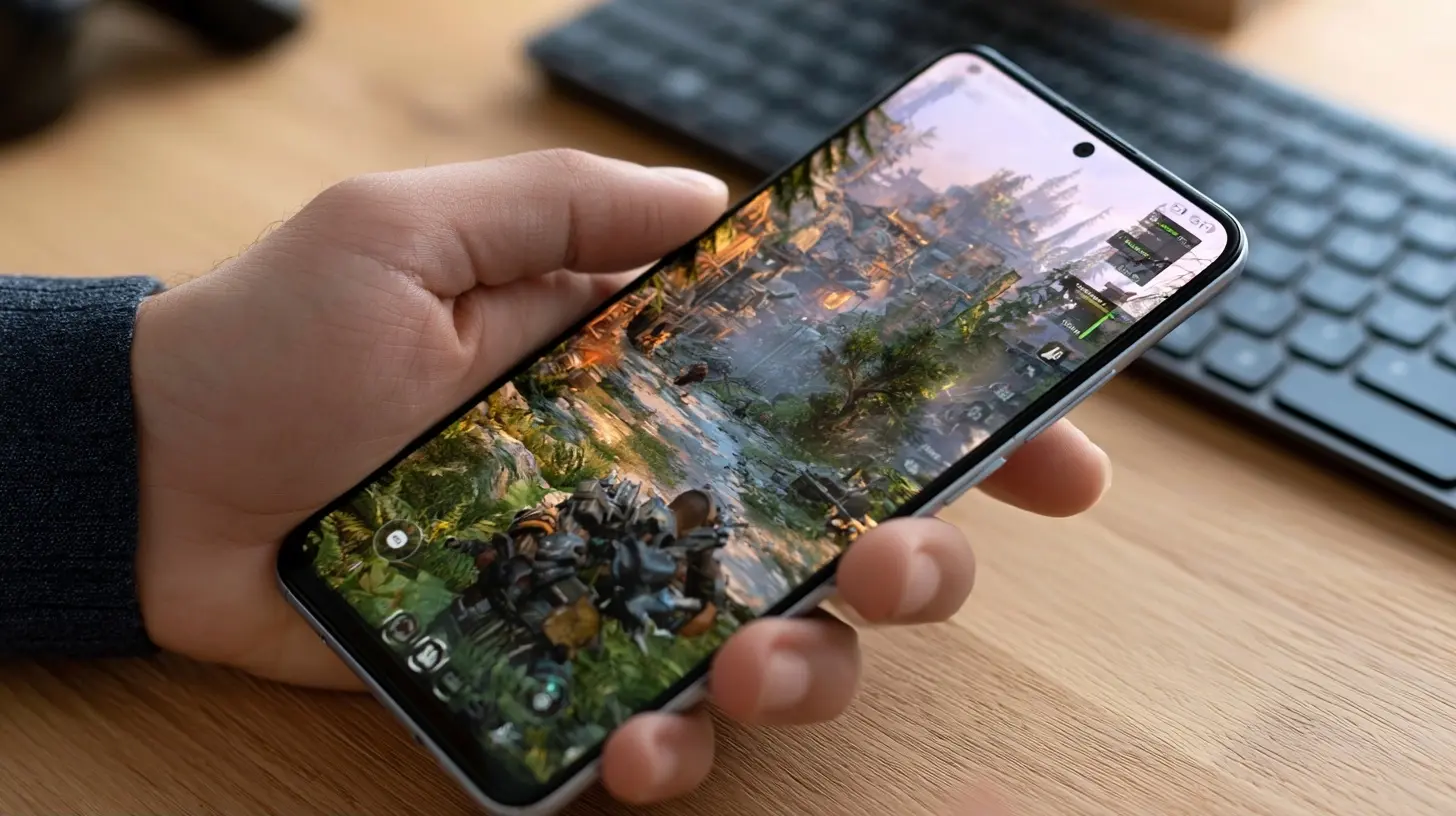
Start With the Settings That Actually Matter
Most overheating problems are partly self-inflicted through settings. Before buying a single accessory, spend twenty minutes in your phone's settings and your game's settings. This is free, it works on every device, and it often delivers bigger gains than any cooler.Cap the Frame Rate
Running a game at 120 frames per second instead of 60 roughly doubles the GPU's workload for a visual difference many players cannot reliably perceive on a phone screen, especially during fast motion. Capping the frame rate is the single most effective software change you can make. A stable 60 fps feels better than a fluctuating 90 to 120 fps, because consistency matters more to perceived smoothness than peak numbers. If your game offers a 60 fps cap, use it. If it offers 45 or 40, consider it for very demanding titles. You will lose some fluidity and gain hours of stable play.Lower Graphics Presets Selectively
Do not just drop everything to low. Some settings cost a lot of performance for little visual gain, while others are cheap. Shadows, reflections, and post-processing effects like bloom and motion blur tend to be expensive. Texture quality often costs more memory than raw compute, so it is less punishing on heat. Resolution scaling is a powerful lever: rendering at 90 percent and upscaling is frequently imperceptible on a small screen but meaningfully lighter on the GPU. The right approach is to change one setting at a time and watch both the visual result and how warm the phone gets.Turn Off Background Activity
Every app syncing email, refreshing feeds, or tracking location in the background competes for CPU time and radios. Before a session, close what you do not need. Android and iOS both manage background tasks reasonably well, but a phone that is also uploading photos or running navigation is doing more work and generating more heat. Airplane mode is the nuclear option: it eliminates modem heat entirely, and for offline games it is a genuinely good idea. For online games, Wi-Fi generally draws less power than cellular, especially on a weak signal, where the modem boosts power to stay connected.Disable Performance-Enhancing Modes You Do Not Need
Many phones ship with a game mode or performance mode that raises clock speeds and disables background limits. These modes can help in short bursts but often make sustained heat worse, because they remove the very safeguards that keep temperatures manageable. Read what the mode actually does before enabling it. A mode that prioritizes sustained performance over peak performance is usually the better choice for long sessions.
Manage Charging and Battery Behavior
Charging and gaming together is the most common cause of severe overheating, and it is entirely avoidable. The battery produces heat when charging and when discharging heavily. Doing both at once stacks the two heat sources in the same component.The practical rule: charge before you play, not during. If you must play while plugged in, use a slower charger rather than a fast charger, and if your phone supports a bypass charging or "charge separation" feature, enable it. Bypass charging routes power directly to the system instead of through the battery, which cuts battery heat dramatically. This feature has become more common on gaming phones and flagship devices, and it is worth checking whether yours has it.
Battery health also matters over time. A phone that has spent two years being charged to 100 percent while running heavy games will have a degraded battery that produces more heat under load. If your phone offers a charge limit, such as capping at 80 or 85 percent for daily use, use it. You lose some runtime per charge and gain a battery that stays cooler and healthier for longer.
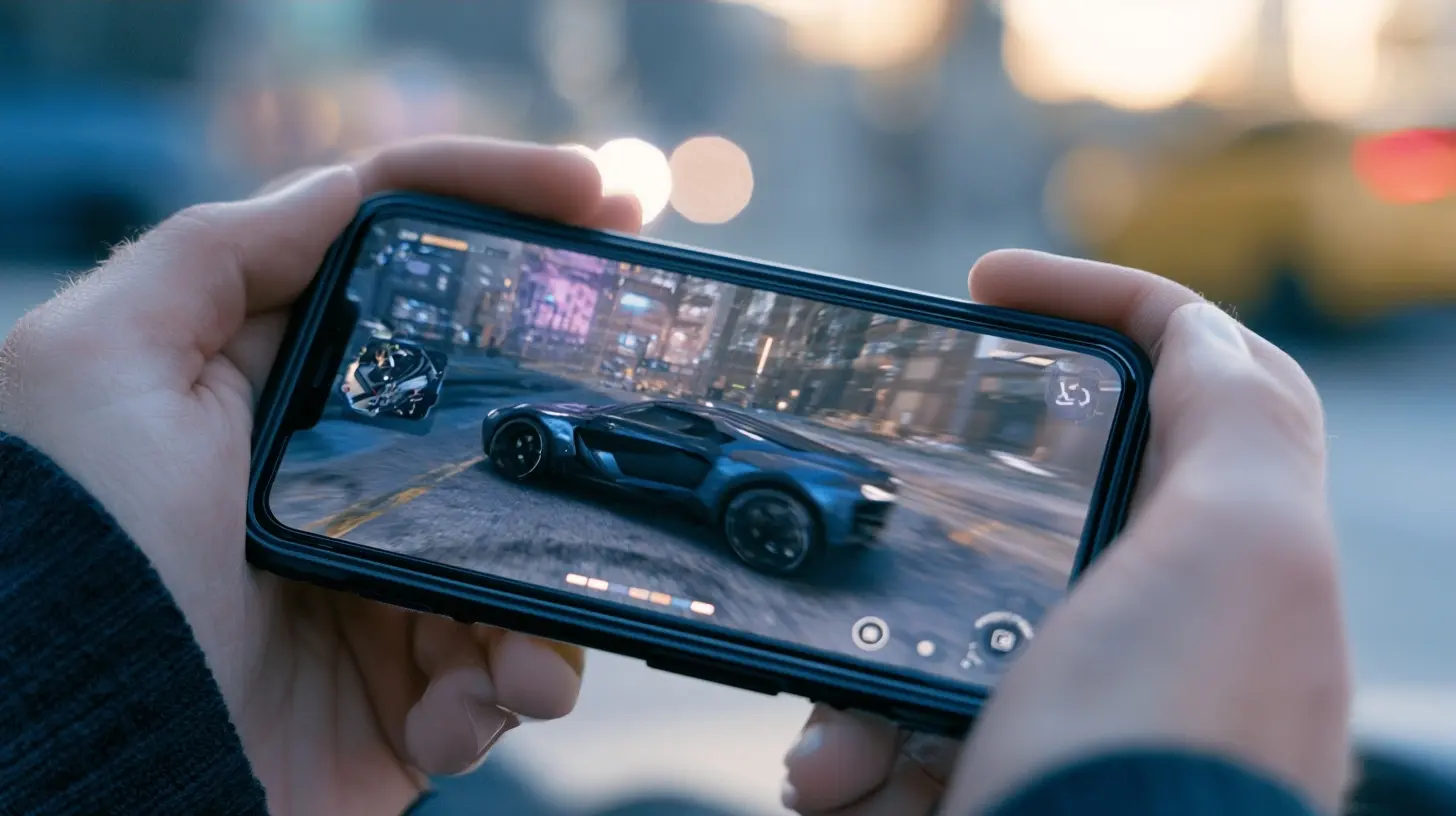
Cooling Accessories: What Works and What Does Not
The accessory market is full of products that promise to solve phone heat. Some are genuinely effective. Others are placebo.Clip-On Peltier Coolers
These are the most effective consumer cooling accessory available. They use a thermoelectric plate to actively pull heat out of the phone's back, and a fan to exhaust it. A good one can drop surface temperatures by a meaningful margin and, more importantly, delay or prevent thermal throttling during long sessions. They work best when paired with a case that conducts heat rather than insulates it, or with no case at all. The trade-offs: they add bulk and weight, they need their own power, and cheap units are loud or weak. Look for one with a large contact plate and adjustable power rather than the cheapest option.Passive Metal Plates and Heat Sinks
Simple aluminum plates and graphene pads can help spread heat, but they cannot move it into the air as effectively as an active cooler. They are cheap, silent, and slim, which makes them a reasonable choice for shorter sessions. Do not expect miracles.Cases: The Insulation Problem
Most phone cases are made of silicone, TPU, or leather, all of which trap heat. A thick rugged case is the worst offender. If you game seriously, consider removing the case during sessions or using a thin, thermally conductive case designed for gaming. This is one of the simplest changes you can make and it costs nothing.The Fan Myth
A desk fan blowing on the back of your phone helps a little, mainly by improving air circulation around the device. It is not useless, but it is far less effective than direct contact cooling. Do not rely on it as your primary strategy.Habits and Environment
Where and how you play matters more than many people realize.Avoid direct sunlight and hot rooms. A phone in a 30 degree Celsius room has far less thermal headroom than one in an air-conditioned space. Playing on a bed or sofa is a common mistake: soft surfaces block the vents and insulate the back of the phone. Hard, flat surfaces are better.
Do not stack your phone on another heat source, such as a laptop that is also running hot. And give the phone a break between long sessions. Ten minutes of idle time lets the chassis shed accumulated heat, which resets your thermal budget for the next match.
Screen brightness is another underrated factor. The display is a significant heat source, and maximum brightness in a bright room pushes it hard. Auto-brightness is usually a good compromise, but if you are gaming indoors, manually lowering brightness reduces both heat and battery drain.
Common Mistakes and Misconceptions
A few pieces of popular advice are actively counterproductive.Cooling your phone in a refrigerator or freezer is a bad idea. Rapid temperature swings can cause condensation inside the device, and the extreme cold can stress the battery and display. Never do this.
Closing all apps aggressively does not help and may hurt, because the system then has to reload them from scratch, which costs more CPU time than leaving them cached. Modern mobile operating systems handle memory well.
Rooting or jailbreaking to install custom thermal profiles is risky. You may gain control over throttling thresholds, but you also void warranties and risk instability, and the phone's thermal limits exist for good reason.
Finally, do not assume a more expensive phone will not overheat. Flagship chips are often more powerful and run hotter under load than mid-range chips. A well-optimized mid-range phone with a capped frame rate can deliver a cooler, more consistent experience than a flagship running everything at maximum.
A Practical Optimization Checklist
Here is a sequence that works for most phones and most games.1. Remove the case or switch to a thin, conductive one.
2. Charge to a comfortable level before playing, and avoid charging during play.
3. Enable bypass charging if your phone supports it.
4. Cap the frame rate at 60 fps, or lower for very demanding titles.
5. Reduce shadows, reflections, and post-processing before touching texture quality.
6. Lower screen brightness and disable auto-brightness during sessions.
7. Close unnecessary background apps and prefer Wi-Fi over weak cellular.
8. Play on a hard surface, out of direct sunlight, in a cool room.
9. For sessions longer than 30 to 45 minutes, add an active clip-on cooler.
10. Take short breaks between long sessions to let heat dissipate.
The Bottom Line
Optimizing a phone for gaming without overheating is less about one magic setting and more about stacking small, sensible decisions. Reduce the workload, remove the insulation, manage the battery, and add active cooling only when you genuinely need it for long sessions. Do that, and your phone will spend its performance budget on frames instead of on fighting its own temperature. The result is not just a cooler device, but a more consistent and enjoyable game.
all images in this post were generated using AI tools
Category:
Smartphone TipsAuthor:

Jerry Graham