How to Manage Apps and Updates on Your Smart TV
22 March 2026
Smart TVs are like the Swiss Army knives of home entertainment. They let you stream movies, browse the web, play games, and even check your social media — all from the comfort of your couch. But to keep everything running smoothly, you’ve got to know how to manage apps and updates like a pro.
If your Smart TV’s home screen feels a bit cluttered, or you’ve been wondering why your favorite app isn’t working like it used to, then it's time for a little digital sprucing up. Don’t worry — I’m here to guide you through every step with zero tech jargon and a whole lot of helpful insights.
Let’s dive right into how you can take control of your Smart TV’s apps and updates without breaking a sweat.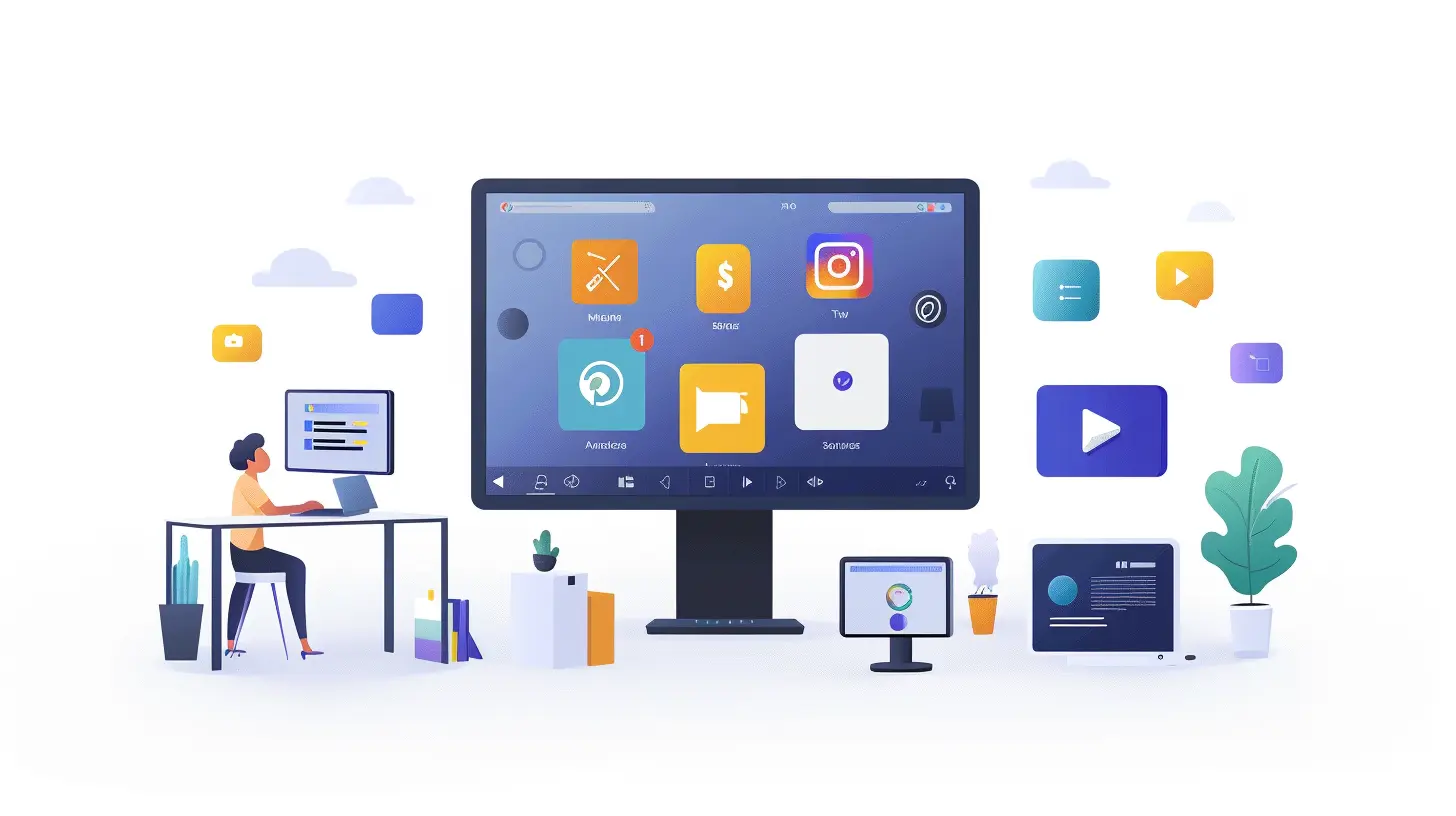
🧠 Why Managing Smart TV Apps Matters
Let’s be real. Smart TVs do everything short of cooking your dinner. But the more features you pack into a device, the more maintenance it needs. Apps behave like they’re on a smartphone — they need updates, they can crash, and they can hog memory if left unchecked.Here’s what you get when you manage your apps properly:
- Faster performance
- More storage space
- Better security
- Access to new features
- Fewer tech headaches
Still think managing apps is a waste of time? Not when it can make your Netflix binge smoother or prevent that spinning wheel of doom mid-movie.
🛠️ The Basics: How Apps Work on Smart TVs
Before we jump into managing apps, let’s quickly understand how they operate on Smart TVs. Most Smart TVs—whether it’s Samsung, LG, Sony, or TCL—use their own operating systems like Tizen, webOS, Android TV, Roku OS, or Fire TV OS. These platforms support a wide variety of apps, from streaming services like Netflix and Hulu to weather and fitness apps.Every app you install uses memory and gets updated just like on your smartphone. That means if you ignore them, they can become outdated or buggy. Sounds annoying, right? Well, managing them takes just a few minutes.
📲 How to Add New Apps to Your Smart TV
Craving a new app like Disney+, Spotify, or maybe even a sleep sounds app to calm your evenings? Adding apps is usually an easy process.For Samsung Smart TVs (Tizen OS):
1. Press the Home button.2. Navigate to Apps.
3. Use the search bar to find your app.
4. Select Install.
For LG Smart TVs (webOS):
1. Hit the Home button.2. Go to the LG Content Store.
3. Browse or search for the app.
4. Click Install.
For Android TVs (Sony, Hisense, etc.):
1. Press the Home button.2. Go to Google Play Store.
3. Use the search to find your app.
4. Select Install.
Pretty straightforward, right? It’s like shopping, only you’re not spending money (unless it’s a paid app).
🗑️ How to Delete or Uninstall Apps
Got apps you haven’t touched in months? Maybe it’s time to Marie Kondo your Smart TV. If the app doesn’t spark joy (or entertainment), let it go.For Samsung:
1. Go to Apps > Settings.2. Select the app you want gone.
3. Choose Delete.
For LG:
1. From the home screen, scroll to the app.2. Press and hold the OK button until the edit mode appears.
3. Select the X icon.
For Android TV:
1. Go to Settings > Apps.2. Pick the app.
3. Tap Uninstall.
By removing old apps, you’re not just tidying up. You’re also freeing up space and making room for updates and new streaming adventures.
🔄 How to Update Apps Manually
Just like your smartphone, apps on your Smart TV need regular updates to fix bugs and run better. Sometimes, these updates are automatic, but it's always a good idea to know how to check manually.For Samsung:
- Go to Apps > Settings.- Turn on Auto Update or select individual apps and click Update (if available).
For LG:
- Apps update automatically, but you can refresh the LG Content Store to look for new updates.For Android TV:
- Open Google Play Store > My Apps.- Choose Update All or update apps individually.
If the developers improved anything behind the scenes — better resolution, faster loading, slicker interface — you'll get it all through these updates.
⚙️ How to Set Up Auto Updates
You don’t want to babysit every app, right? That’s where automatic updates come in.Samsung Smart TV:
1. Open Apps.2. Go to Settings.
3. Toggle Auto Update to ON.
LG Smart TV:
- It usually updates apps automatically by default, but you can check under General Settings > About This TV to enable software auto-updates.Android TV:
1. Open Google Play Store.2. Go to Settings.
3. Select Auto-update apps and choose your preference.
Boom — done! Now your apps can refresh themselves while you binge-watch your favorite shows.
📦 Managing Storage on Your Smart TV
Here’s a fact: Smart TVs don’t come with infinite storage. Install too many apps or download too much data, and your TV might start wheezing like an old laptop. Let’s avoid that, shall we?Tips to Free Up Space:
- Uninstall unused apps.- Move apps to USB storage (if supported).
- Clear cache (this one's gold for Android TVs).
To check storage:
- On Android TV: Settings > Device Preferences > Storage.
- On Samsung: Navigate through Settings > Support > Device Care.
- On LG: Go to Settings > General > Storage & Reset.
Keep an eye on storage, and clean up regularly. It’s like spring-cleaning — but digital.
📉 Troubleshooting App Issues
Apps crashing? Not loading? Don’t panic; it happens to the best of us. Here’s the quick-fix checklist.Try This:
1. Restart your TV: Like rebooting a grumpy mood.2. Check network connection: Most apps need Wi-Fi like plants need water.
3. Update the app: Outdated apps often misbehave.
4. Clear cache (Android TV): Go to Settings > Apps > [App Name] > Clear Cache.
5. Uninstall and reinstall: The old "turn it off and on again" trick in disguise.
If nothing works, a factory reset is your last resort. But remember to back up your settings — you’ll be starting from scratch.
🧪 Bonus: Using Voice Commands to Manage Apps
If your remote has a microphone or if you’re using something like Amazon Alexa or Google Assistant with your Smart TV, you can say things like:- “Open Netflix”
- “Update my apps”
- “Remove YouTube from my TV”
Slick, right? It’s like having your own digital butler.
🚀 Pro Tips You Probably Didn’t Know
Want to take your app-managing game to the next level? Try these:- Organize apps into folders (some TVs let you do this).
- Pin favorite apps to the homepage for quicker access.
- Disable auto-play previews in certain apps like Netflix (you’ll thank me later).
- Use a smartphone remote app to type and manage apps faster.
🎯 Final Thoughts
Managing apps and updates on your Smart TV isn’t just a good habit—it’s essential if you want a seamless, frustration-free viewing experience. A well-maintained Smart TV is faster, safer, and simply more enjoyable.Think of your Smart TV like a digital garden. Pull the weeds (unwanted apps), water the plants (update your apps), and trim the hedges (free up storage). Do a little upkeep now and then, and it’ll reward you with the ultimate entertainment experience.
So go ahead — take a few minutes to clean things up. Your future binge-watching self will thank you.
all images in this post were generated using AI tools
Category:
Smart TvsAuthor:

Jerry Graham
Discussion
rate this article
2 comments
Andrea Yates
Managing apps on your Smart TV: where your biggest dilemma is choosing between binge-watching or actually updating the system. Priorities!
March 28, 2026 at 3:29 AM
Jerry Graham
Absolutely! Balancing binge-watching with necessary updates can be challenging, but maintaining your Smart TV is key for the best viewing experience!
Thea McBride
Thank you for this insightful guide! Managing apps and updates can be frustrating, and your tips make it so much easier.
March 27, 2026 at 3:42 AM
Jerry Graham
Thank you for your kind words! I'm glad you found the guide helpful!