How to Connect Your VR Headset to Multiple Devices
27 June 2026
Virtual Reality (VR) has taken the tech world by storm, giving us the power to immerse ourselves in different worlds, from intense gaming sessions to virtual workspaces. But here’s a question that many VR enthusiasts like you have probably asked: How do I connect my VR headset to multiple devices?
Whether you’re planning to switch between your gaming console, PC, or smartphone, connecting your VR headset to various devices can seem like a daunting task. But don’t worry — it's not rocket science! By the time you finish reading this guide, you'll be a VR connection wizard ready to tackle any device.
So, let’s dive right in!
Why Would You Want to Connect Your VR Headset to Multiple Devices?
Before we get into the nitty-gritty, let’s answer one simple question: Why would you even want to connect your VR headset to multiple devices?Well, variety is the spice of life! You might use your VR headset for different purposes on different devices. Maybe you game on your PC, watch movies on your smartphone, and attend virtual meetings on your laptop. Whatever your reasons, having the flexibility to switch between devices can significantly enhance your VR experience.
And let's face it, being versatile with your VR headset means you can get the most bang for your buck!
Types of VR Headsets and Devices: A Quick Overview
Before we start, it's important to know that not all VR headsets are created equal. Some are standalone devices, while others require external hardware to function. Here’s a quick breakdown:- Standalone VR Headsets: These include models like the Oculus Quest 2, which don’t need to be tethered to any device. They have built-in processors, displays, and storage.
- Tethered VR Headsets: These headsets, like the HTC Vive or PlayStation VR, need to be connected to external devices like gaming consoles, PCs, or laptops to function.
The devices you’ll want to connect your VR headset to can include:
- Gaming Consoles (like PlayStation or Xbox)
- PCs or Laptops
- Smartphones or Tablets
- Streaming Devices (like Chromecast)
Each device comes with its own connection method and challenges, but we’ll cover all the main bases to ensure you’re all set.
Let’s break it down, step by step!
How to Connect Your VR Headset to a Gaming Console
PlayStation VR
If you're using a PlayStation VR (PSVR), you're in luck. This headset is specifically designed to work with PlayStation consoles, so the connection process is pretty straightforward.Steps to Connect PSVR to Your PlayStation:
1. Connect the Processor Unit:- Plug the Processor Unit into your PlayStation console using the HDMI cable provided.
2. Connect the VR Headset:
- Use the dedicated PSVR cable to connect the headset to the Processor Unit.
3. Power It Up:
- Turn on your PlayStation console, and your PSVR headset should automatically turn on. If not, press the power button on the VR headset.
That’s it! Your PlayStation VR is now ready for gaming.
Using the Oculus Quest 2 with Consoles
The Oculus Quest 2, a standalone VR headset, doesn't natively support gaming consoles like PlayStation or Xbox. But here’s a little workaround: you can use apps like Virtual Desktop to stream the console’s output to your VR headset. Keep in mind, though, that the experience might not be as seamless, and latency could be an issue.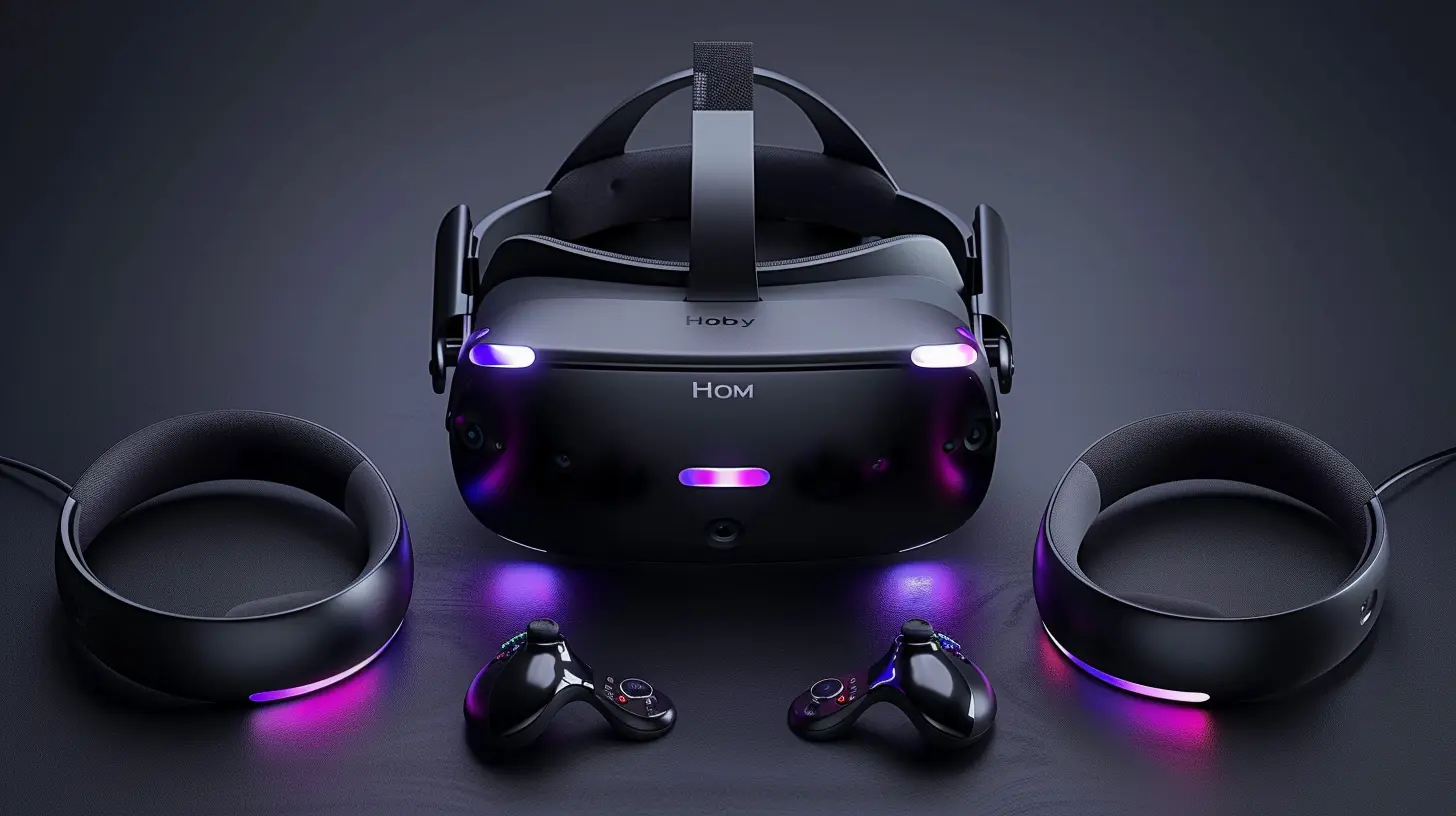
How to Connect Your VR Headset to a PC or Laptop
If you're a PC gamer, connecting your VR headset to your computer opens up a world of possibilities. Whether you're playing VR games from Steam or engaging in more immersive simulations, your gaming experience will be top-notch.Oculus Quest 2 (PC Connection)
While the Oculus Quest 2 is a standalone device, it can be connected to a PC via Oculus Link (a USB-C cable) or wirelessly using Air Link.Steps to Connect Oculus Quest 2 via Oculus Link:
1. Download Oculus Software:- First, download and install the Oculus desktop app on your PC.
2. Connect the Cable:
- Use a high-quality USB-C cable to connect the Oculus Quest 2 to your PC.
3. Enable Oculus Link on the Headset:
- Put on your headset, and you’ll see a prompt asking if you want to enable Oculus Link. Click Enable.
4. Start Playing:
- Now, you can access PC VR games via Oculus or SteamVR.
Steps to Connect Oculus Quest 2 via Air Link:
1. Ensure a Strong Wi-Fi Connection:- Make sure both your PC and Oculus Quest 2 are connected to the same network, preferably a 5GHz Wi-Fi for minimal latency.
2. Enable Air Link:
- Go to Settings in the Oculus app on your headset, and toggle Air Link on.
3. Pair with Your PC:
- In the Oculus desktop app, click on Devices and then pair your headset via Air Link.
With Air Link, you get the freedom to go wireless, but make sure your Wi-Fi is up to the task!
HTC Vive (PC Connection)
The HTC Vive is designed to work seamlessly with PCs. Here’s how you connect it:1. Install SteamVR:
- Download and install SteamVR on your PC.
2. Connect the Vive Base Stations:
- Set up the tracking base stations in your play area, and connect them to your PC.
3. Connect the Vive Headset:
- Plug the HDMI and USB cables into the correct ports on your computer.
4. Run SteamVR Setup:
- Launch SteamVR and follow the on-screen instructions to complete the setup.
Now, you’re ready to dive into the virtual realm with your HTC Vive!
How to Connect Your VR Headset to a Smartphone
Some VR headsets, especially mobile VR devices like the Samsung Gear VR or Google Cardboard, are designed to work primarily with smartphones.Samsung Gear VR
The Samsung Gear VR is pretty much plug-and-play.1. Insert Your Phone:
- Open the front panel of the Gear VR and insert your compatible smartphone.
2. Install the Oculus App:
- If it's your first time using it, you’ll be prompted to download the Oculus app on your phone.
3. Start Exploring:
- Once everything is set up, you can start navigating the VR world using the Gear VR’s touchpad.
Google Cardboard
Google Cardboard is one of the simplest ways to experience VR on your smartphone.1. Download a VR App:
- Head over to your app store and download a VR app, like Google Cardboard or YouTube VR.
2. Insert Your Phone into the Cardboard Viewer:
- Place your smartphone into the front slot of the Google Cardboard viewer.
3. Look Around:
- With your phone in place, you can now enjoy basic VR experiences through the lenses of the Google Cardboard.
How to Stream VR Content from Your Headset
Want to share your VR experience with friends or family? Streaming content from your VR headset to a larger screen is not only possible but pretty easy. You can stream to devices like a TV, laptop, or even a smartphone.Streaming Oculus Quest 2 to a TV
The easiest way to stream content from the Oculus Quest 2 is to use Google Chromecast.1. Connect Chromecast to Your TV:
- Plug the Chromecast device into your TV’s HDMI port.
2. Open the Oculus App:
- On your smartphone, open the Oculus app and tap on the Cast option.
3. Select Your Chromecast:
- Choose your Chromecast device from the list, and voilà! Your VR experience will be mirrored on your TV.
Streaming HTC Vive to a Monitor
For HTC Vive users, SteamVR has built-in streaming capabilities.1. Launch SteamVR:
- Open SteamVR on your PC.
2. Start Broadcasting:
- Click on the VR View option in SteamVR to mirror the VR content onto your monitor.
This is a great way to involve others in your VR sessions, even if they’re not wearing a headset.
Troubleshooting Common Issues
No tech guide is complete without a little troubleshooting, right? Here are some common issues you might face when connecting your VR headset to multiple devices, and how to fix them:- Lag or Latency Issues: If you're experiencing lag while using VR wirelessly (e.g., Oculus Air Link), check your Wi-Fi connection. Switching to a 5GHz network or using a wired connection can help improve your experience.
- Poor Tracking: Ensure your room is well-lit and that there are no reflective surfaces to confuse the sensors on tethered headsets like the HTC Vive.
- No Display on Headset: Make sure all cables are securely connected, and that your VR headset and connected device (PC, console, etc.) are both powered on.
Final Thoughts
There you have it! Connecting your VR headset to multiple devices isn’t as complicated as it seems. Whether you’re using a PlayStation VR, Oculus Quest 2, HTC Vive, or even a mobile VR headset like Samsung Gear VR, you now know how to seamlessly switch between devices and get the most out of your virtual reality experience.So, grab your headset, follow the steps, and dive into the virtual world from any device you like!
all images in this post were generated using AI tools
Category:
Vr HeadsetsAuthor:

Jerry Graham
Discussion
rate this article
1 comments
Naya McAdams
Great article! I appreciate the step-by-step guide. It's super helpful to connect my VR headset to multiple devices without hassle. The troubleshooting tips are also a nice touch for resolving common issues.
June 28, 2026 at 2:48 AM
Jerry Graham
Thank you! I'm glad you found the guide helpful. Connecting multiple devices can be tricky, so I aimed to make it easier. Happy VR gaming!